Mobile Viewers
Congregants follow live sermon translation on their phones — no app download required. They scan a QR code or open a link shared by your media team.
How it works
- The operator clicks QR Code in the Live top bar.
- Attendees scan the QR code with their phone camera.
- They tap Tap to start and choose their language.
- Live captions appear on their screen for the duration of the service.
The viewer page URL pattern:
https://your-domain.com/view?room=YOUR_ROOM_ID
Operator setup
From the Live top bar
Click QR Code to open the congregation viewer modal. From there you can:
- Display the QR code for scanning
- Copy viewer URL for text/email sharing
- Copy QR as Image with a custom message for slides or bulletins
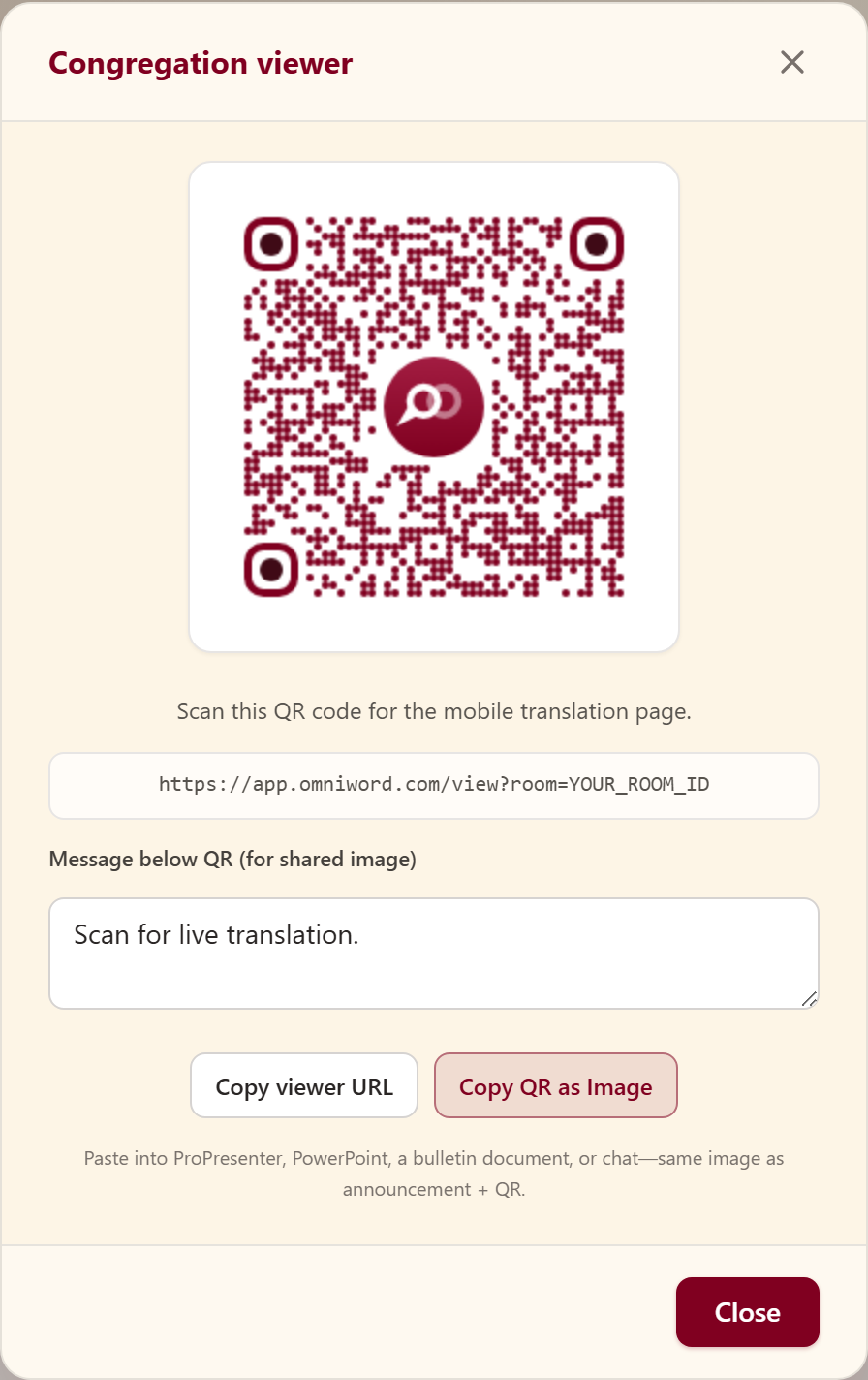
Screenshot: QR Code on the Live top bar opens this modal — share the link, copy the viewer URL, or export the QR as an image for slides.
Congregant experience
When an attendee opens the viewer page:
- Tap to start — tap to begin following the service
- Live captions — translations stream in real time
- Use the header controls to listen, change text size, and choose language
Viewer controls
After Tap to start, the top bar is the main control surface:
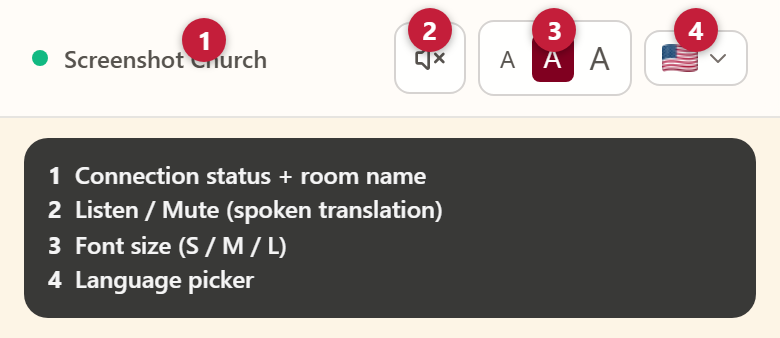
Screenshot: viewer top bar — numbered controls match the table below.
| # | Control | What it does |
|---|---|---|
| 1 | Status + room name | Green = connected; amber = paused / operator offline. Room name comes from the operator setup. |
| 2 | Listen / Mute | Optional spoken translation. Starts off after open or refresh. Burgundy + EQ bars = on; animated bars = audio playing. Prefer earphones in the sanctuary. |
| 3 | Font size (A A A) | Small / medium / large caption text. Selection is remembered on this device. |
| 4 | Language flag | Opens the language list. Spoken audio (if Listen is on) follows the language you pick. |
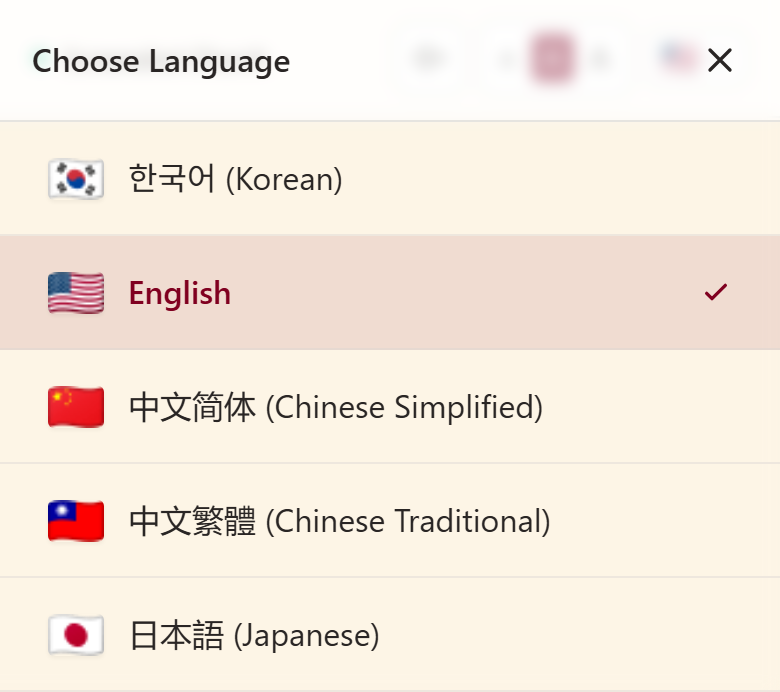
Screenshot: tapping the flag opens Choose Language — pick any language the operator has enabled for this service.
Session states
Status chrome (waiting, paused, disconnected, ended, and related buttons) follows the translation language the congregant picks when OmniWord has a UI locale for it (English, Korean, Spanish, Portuguese, Russian). Other viewer languages fall back to English for those strings.
| Screen (English example) | Meaning |
|---|---|
| Waiting for sermon to begin… | Connected but operator hasn't started translation |
| Translation paused — service will resume shortly | Operator paused translation (Pause) |
| The broadcast has been temporarily paused. Please wait... | Room was force-ended / broadcast standby — wait for reconnect |
| Translator disconnected — waiting for reconnect… | Operator offline — waiting for reconnect |
| Service Ended | Operator clicked End Service (Thank you for joining today's service.) |
| Session moved to a new tab | Same viewer opened in another tab — close this window |
| Connecting… | Viewer is establishing the live connection |
Supported languages
Congregants can choose from 20 languages:
Korean, English, Chinese (Simplified & Traditional), Japanese, Spanish, Portuguese, French, Italian, German, Filipino, Indonesian, Vietnamese, Hindi, Arabic, Russian, Thai, Swahili, Sinhala, and Tamil.
Congregants can choose any supported language. Usage is billed per active language while viewers are connected.
Tips for Sunday morning
- Display the QR code on a pre-service slide or bulletin announcement
- Test the QR from a phone on your church Wi-Fi before the service
- Ensure your production URL is public HTTPS —
localhostwon't work for congregant phones - The viewer count badge on Live shows how many people are connected
- Remind Listen users to use earphones so phone speakers don’t distract nearby seats
See Troubleshooting & FAQ for QR/localhost issues, app downloads, and multi-tab behavior.