Advanced Settings
Select Sermon under Translation mode, then click the settings icon on that button to choose how sermon captions are paced. Overlay URLs stay under My Account → Settings → Screens & Broadcast. Congregation QR stays on the Live top bar.
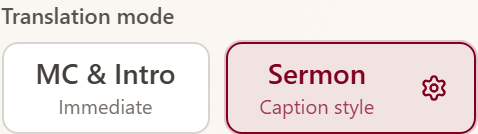
Screenshot: Sermon selected — the settings icon opens caption pace. Hidden in MC & Intro.
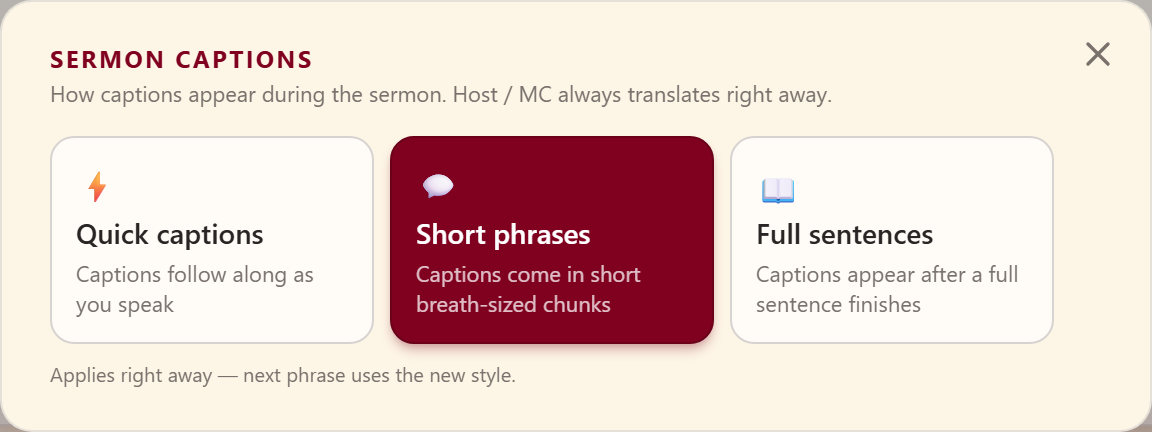
Screenshot: caption styles — Quick captions, Short phrases, and Full sentences.
Sermon captions
These options appear while Live is in Sermon mode. Host / MC & Intro always translates right away — you will see a short note instead of these buttons.
| Style | What congregants see |
|---|---|
| Quick captions | Captions follow along as you speak |
| Short phrases | Captions come in short breath-sized chunks |
| Full sentences | Captions appear after a full sentence finishes |
Click a style — it applies on the next phrase. You can change this during a service; you do not need to stop recording.
Watch Microphone input level on Live (Amber too quiet, Green good, Red clipping). Raise mixer/PC gain if the pulse stays amber.
Where to find overlay and QR settings
| Task | Where |
|---|---|
| Live Translation languages | Live → Languages |
| Web Overlay URL, size, Send Test, ProPresenter Direct | My Account → Settings → Screens & Broadcast (select room) |
| Congregation QR code | Live top bar → QR Code |
| Overlay setup help | Broadcasting |
Active viewer languages
Viewer languages are unlimited on every plan. Congregants pick any supported language on their phones; billing still counts each active language (see Account & Billing).
For QR localhost issues, see Troubleshooting.