ProPresenter Integration
Two supported ways to show OmniWord captions in ProPresenter 7. Use one path per room unless you intentionally run both.
| Path | Best when | Where to configure |
|---|---|---|
| ProPresenter Direct | You want captions in a ProPresenter Message template ({Lang1} / {Lang2}), or you run ProPresenter on macOS | My Account → Settings → Screens & Broadcast |
| Prop Web Object | You prefer a transparent webpage Prop on Windows (same idea as OBS Browser Source) | My Account → Settings → Screens & Broadcast → Web Overlay URL |
Prop Web Object does not work reliably on macOS (ProPresenter’s web layer often fails to refresh live captions). If you operate ProPresenter on a Mac, use ProPresenter Direct only. Prop remains an option on Windows.
If you have not selected languages or opened Screens & Broadcast yet, start with the On-Site Captions overview.
ProPresenter Direct
OmniWord pushes paced captions from the operator browser to ProPresenter on the same computer via the local Message API (http://127.0.0.1). The OmniWord server never talks to ProPresenter directly.
Requirements
- Open the OmniWord Live (operator) page on the exact same PC that runs ProPresenter
- ProPresenter Network / Message API enabled (note the port — often
50001) - A Theme sized to the audience screen, plus one Message with tokens named exactly
Lang1andLang2(case-sensitive)
Lang1 receives Live Translation 1; Lang2 receives Live Translation 2. Font, color, and position live in the Theme. OmniWord only fills the token text.
Setup in ProPresenter
Do this once on the ProPresenter computer before wiring OmniWord. In ProPresenter 7, Theme is the layout (canvas size, text-box position, font) and Message is the live text (tokens). Create the Theme first — the Message editor has no canvas of its own.
Same pattern as Renewed Vision’s countdown Message + Theme and Theme Editor guides.
1. Enable Network / Message API
- Open ProPresenter → Preferences (Windows: File → Preferences; macOS: ProPresenter → Settings).
- Open the Network tab.
- Enable Network / Enable Network Link (wording varies by ProPresenter 7 build).
- Note the Port (commonly
50001— use whatever ProPresenter shows). - Apply / OK, and restart ProPresenter if it asks you to.
2. Create a Theme (layout and resolution)

Screenshot: top toolbar. Click Theme (paint-roller icon, between Text and Show). Neighboring buttons are not part of the path.
- Click Theme once.
- Then click + / New Theme. Name it clearly — for example
OmniWord Captions. The Theme Editor opens. If Theme is missing (narrow window), click More (⋯, right of Reflow) → Theme Editor, then create a new Theme from the list on the left. - Click empty space on the canvas so nothing is selected. In the Inspector Theme Slide tab, set Size to your audience output — typically
1920×1080or2560×1440. Match the screen you actually project; a mismatched Size will place captions off-frame. - Leave Background off so the Message overlays slides instead of covering them with a filled slide.
- A new Theme usually already includes one text box, but it has no OmniWord token yet. Click the box and replace the placeholder by typing exactly
{Lang1}(curly braces, capital L). - Drag and resize that box to the caption area — usually a lower-third strip at the bottom. In the Inspector Text tab, set font, size, color, alignment, and shadow. Turn on Text Scaling (scale down) so long sentences shrink to fit the box.
- For a second on-screen language, add another text box, type exactly
{Lang2}, and place it somewhere else (for example the top of the frame). - Close the Theme Editor.
Do not use lang1, Language1, or OmniWord1. OmniWord only writes Lang1 and Lang2.
3. Create a Message and attach the Theme
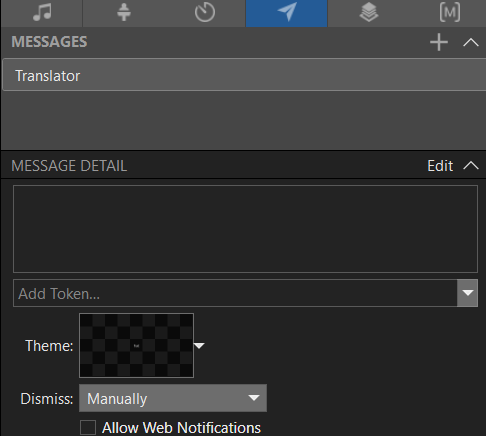
Screenshot: Show Controls Messages (paper-plane icon). After Edit, click the checkerboard next to Theme: — the list appears only after that click.
- Open Messages from Show Controls under the preview (paper-plane icon).
- Click + in the upper right to add a Message.
- Give it a clear display name you will type into OmniWord later — for example
Live TranslatororOmniWord. Screens & Broadcast matches by exact Message name (or UUID). - Click Edit (upper right) so MESSAGE DETAIL expands.
- Next to Theme:, click the checkerboard thumbnail (or its arrow). Then choose the Theme from step 2. Some older builds label this Template.
- Under Add Token..., type
Lang1and press Enter (or click +). Insert it into the Message text so it shows as{Lang1}. Repeat forLang2if you use two languages. Typing{Lang1}only in the Theme is not enough — the Message must own the token for the API to fill it. - Set Dismiss to Manually so captions stay up while OmniWord is live.
Use a single Message that contains both {Lang1} and {Lang2}. OmniWord fills both tokens in one trigger. You do not need two Messages for Target 1 / Target 2.
4. Smoke-test in ProPresenter
- Click Show on that Message.
- Confirm
{Lang1}(and{Lang2}if used) appear in the right place on the audience screen, at the Size you set. - Click Hide, or Actions → Clear Messages, when done.
When the Theme, Message name, port, and tokens are ready, connect OmniWord.
Setup in OmniWord
- Go to My Account → Settings → Screens & Broadcast.
- Select Room for the service you will run.
- Under ProPresenter Direct, enable Enable Local ProPresenter API.
- Set Port to match ProPresenter (default
50001). Host is always127.0.0.1. - Enter the Message name or UUID you created above (e.g.
Live Translator). - Click Send Test Message — OmniWord should connect and can trigger a sample caption into
{Lang1}/{Lang2}. - Changes save automatically when you leave a field or toggle the checkbox — there is no separate Save button.
Browser security only allows HTTPS pages to call http://127.0.0.1. If the operator opens OmniWord on a different machine from ProPresenter, Direct will fail — move the operator browser to the ProPresenter computer. On Windows only, you can alternatively use Prop Web Object. On macOS, stay on Direct and keep the operator browser on the same Mac.
Sunday morning
- Launch ProPresenter with Network enabled and your OmniWord Message ready.
- On Live, set Live Translation languages before Start Service.
- Confirm ProPresenter Direct status shows ready for Target 1 / Target 2.
- Click Start Service — captions stream into
{Lang1}/{Lang2}as speech is translated. - Show / clear the Message on the audience screen as you would any other ProPresenter Message layer.
Settings are per room: campus A and campus B can use different ports or Message templates.
Prop Web Object
This path is for Windows ProPresenter. On macOS, skip this section and use ProPresenter Direct instead.
Keep overlays in a reusable Prop so captions ride above every slide. Buttons and labels mirror the ProPresenter 7 Props tray — adapt wording if your build updates its UI.
Copy each Target URL from My Account → Settings → Screens & Broadcast → Web Overlay URL (not from Live).
1. Props library → Add Prop
Click the Props icon (three stacked rectangles) along the narrow media toolbar near the Libraries column, choose a collection (Default Collection unless you segregate overlays), then press the large centered + · Add Prop chip to instantiate a transparent shell.
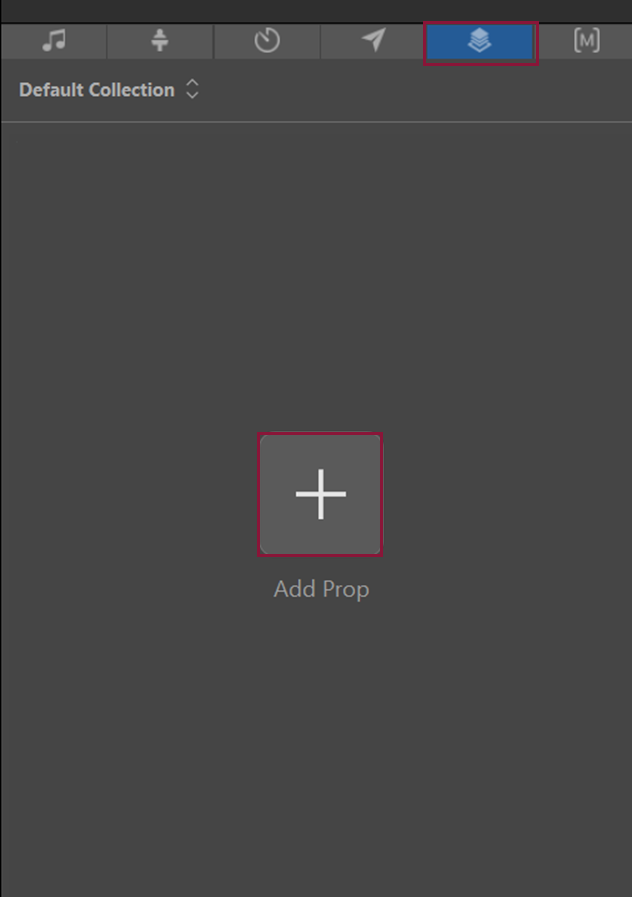
Screenshot: Props tab active (blue toolbar icon) · tap the oversized + control to mint a blank prop thumbnail.
2. Edit the prop
With the translucent checkerboard thumbnail selected, tap the pencil (Edit) to launch the Prop editor canvas + Inspector pairing.
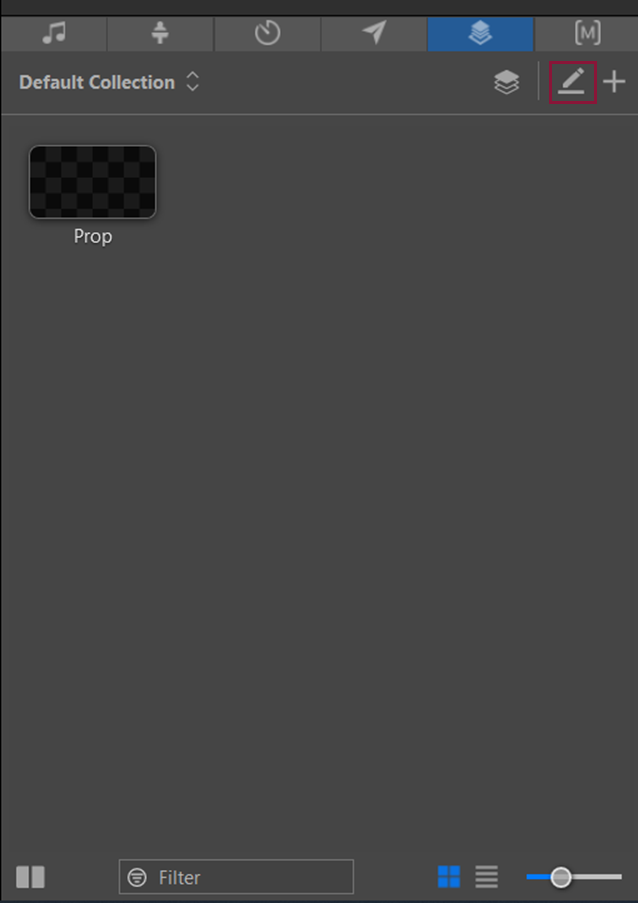
Screenshot: tiny checkerboard thumbnail = empty prop awaiting layout; pencil opens the authoring surface.
3. Insert a Web object
Name the Prop in its Inspector pane for recall (examples: LiveTranslator / OmniWord). On the inset toolbar above the canvas, tap the globe icon (Web Object) to insert a webpage layer into the Prop.
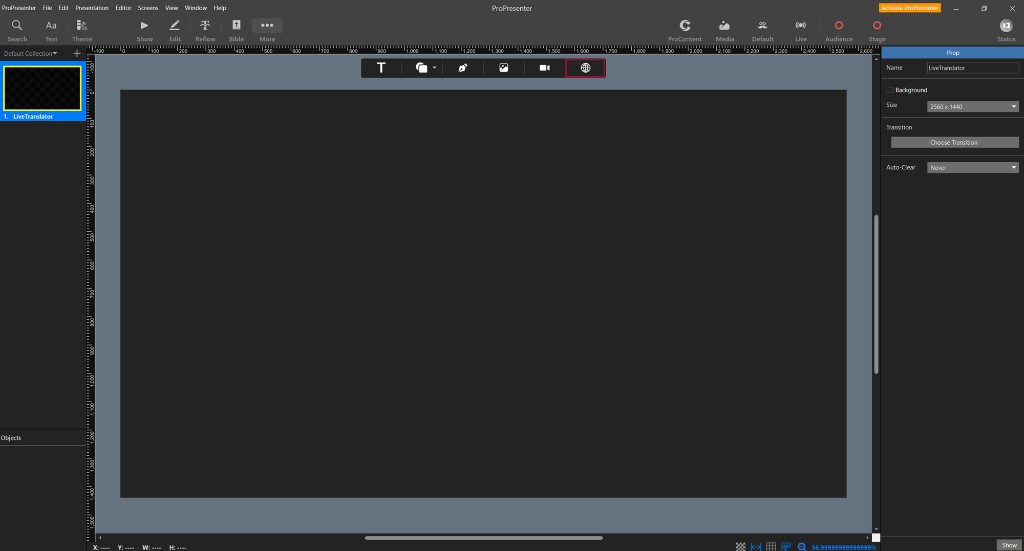
Screenshot: globe injects the HTML layer—you'll position it in the caption area next.
4. Place it in your caption area
You don't need to stretch the web object across the whole canvas. Drag the white handles so the box covers only where you want subtitles—often a lower-third strip at the bottom of the slide. Captions anchor to the bottom of that box, so sizing the region is enough.
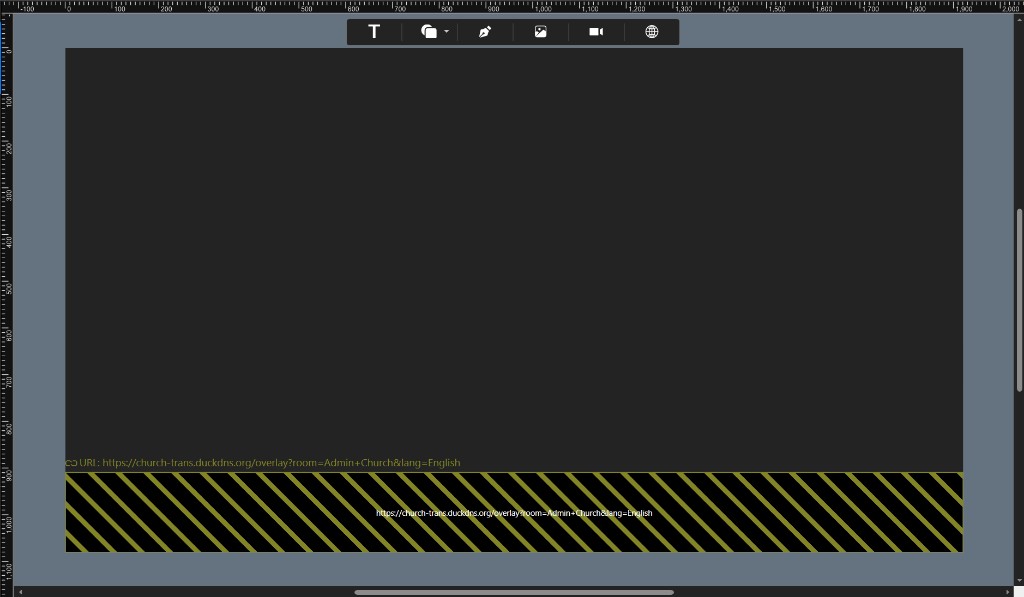
Screenshot: position the web object only where captions should appear; subtitles align to the bottom of that region.
5. Paste URL + tune Fill ▸ Web
Leave the Web object selected inside the Objects list (Web highlighted). Inspector → Shape ▸ Fill ▸ Web → paste the HTTPS Target link from Screens & Broadcast (you can paste before or after resizing—the bounding box controls where pixels land on air).
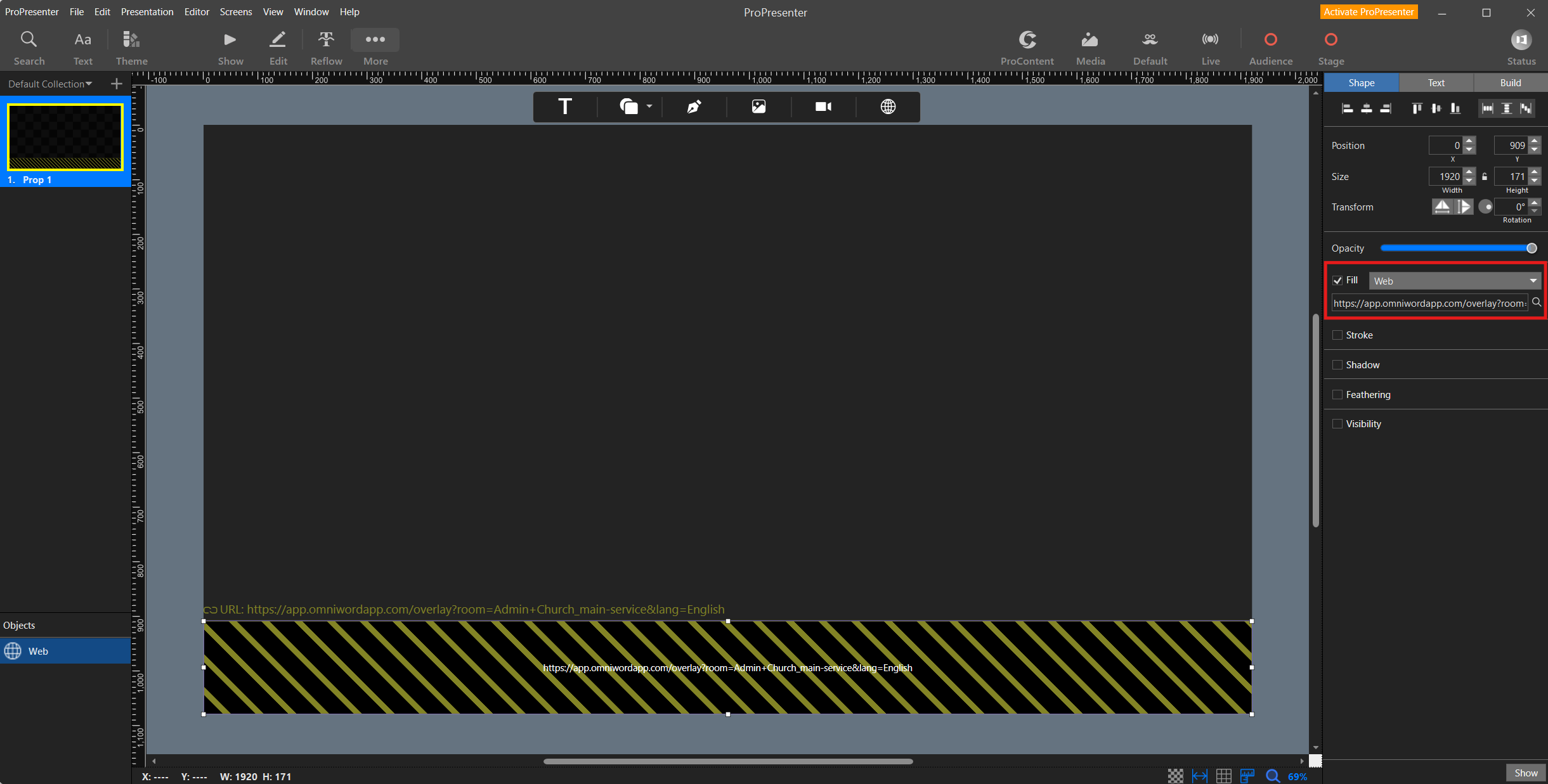
Screenshot: Fill enables Web subtype; OmniWord URLs often show only the trailing /overlay parameters after ProPresenter trims the hostname—overwrite with the clipboard copy if PP leaves the field truncated.
6. Second on-screen language
You can show two overlay languages at once—for example English in a lower-third and Japanese at the top. On Live, select both Live Translation 1 and Live Translation 2. In Screens & Broadcast, copy Target 1 and Target 2 separately. In ProPresenter, add a second web object in another region of the Prop; the lang= parameter in each URL selects which language appears there.
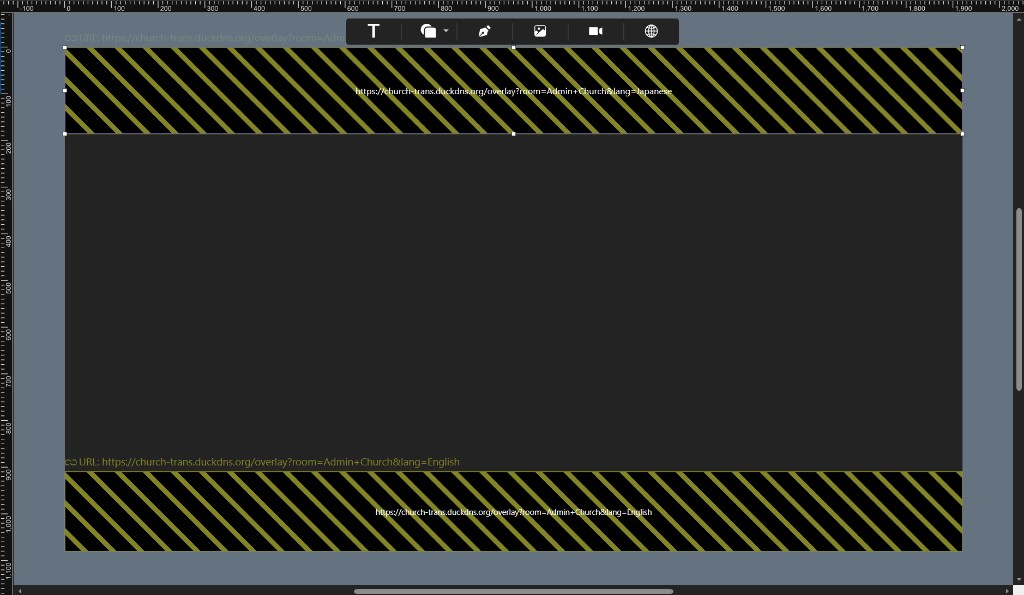
Screenshot: two web objects in one Prop, each sized to its caption region and filled with a different lang= overlay link from Screens & Broadcast.
Sunday morning
Enable or clear this Prop alongside other broadcast layers so translators stay synced without editing each worship slide individually.