OBS & vMix Integration
For paths that use a Browser Source (OBS) or Browser Input (vMix) instead of — or alongside — ProPresenter. The same Browser source feeds an internet stream, a recording, or a sanctuary screen that only shows the mixed picture.
Put the captions in with the Browser source below. Sanctuary screen sends that mix to the projector. PowerPoint and Keynote places a slideshow under the captions. The room shows the stream layout is when the sanctuary display shows the picture you would stream.
If you have not copied your Web Overlay URL yet, start with the On-Site Captions overview.
Copy the overlay URL
- On Live, choose Live Translation language(s).
- Open My Account → Settings → Screens & Broadcast.
- Select Room, then copy Target 1 (and Target 2 if you use a second language).
- Optionally set Size and click Send Test Message with the Browser Source already open.
OBS setup
1. Add a Browser source
Sources panel → + → Browser. Name it (e.g. OmniWord Captions), then click OK.
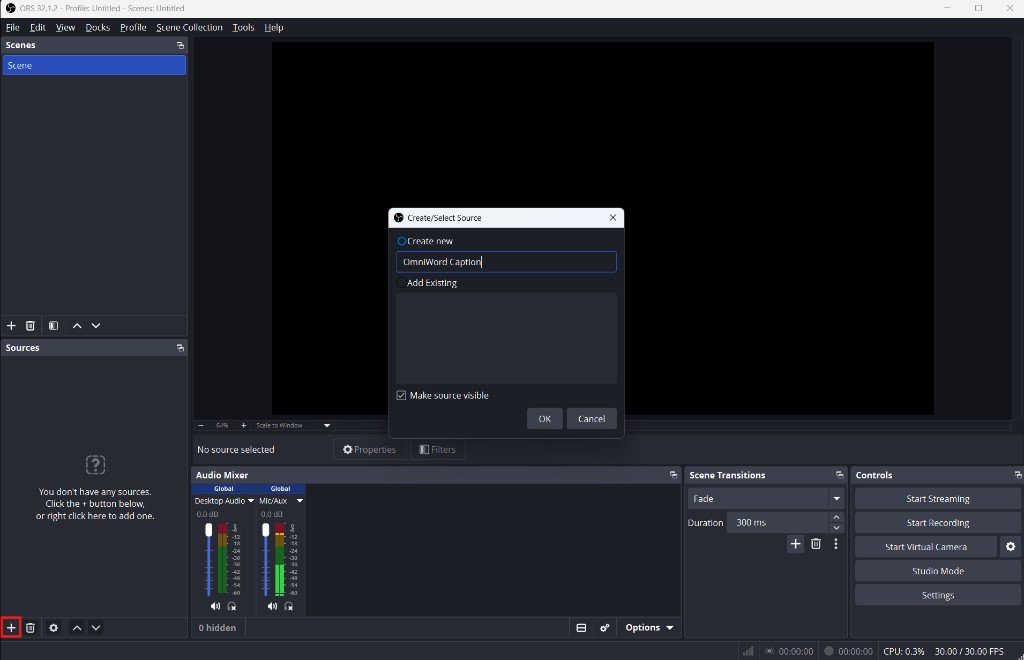
Screenshot: click + under Sources, choose Browser, and name the source.
2. Paste the caption URL
In the Browser source properties, paste the HTTPS Target URL from Screens & Broadcast into URL, then click OK.
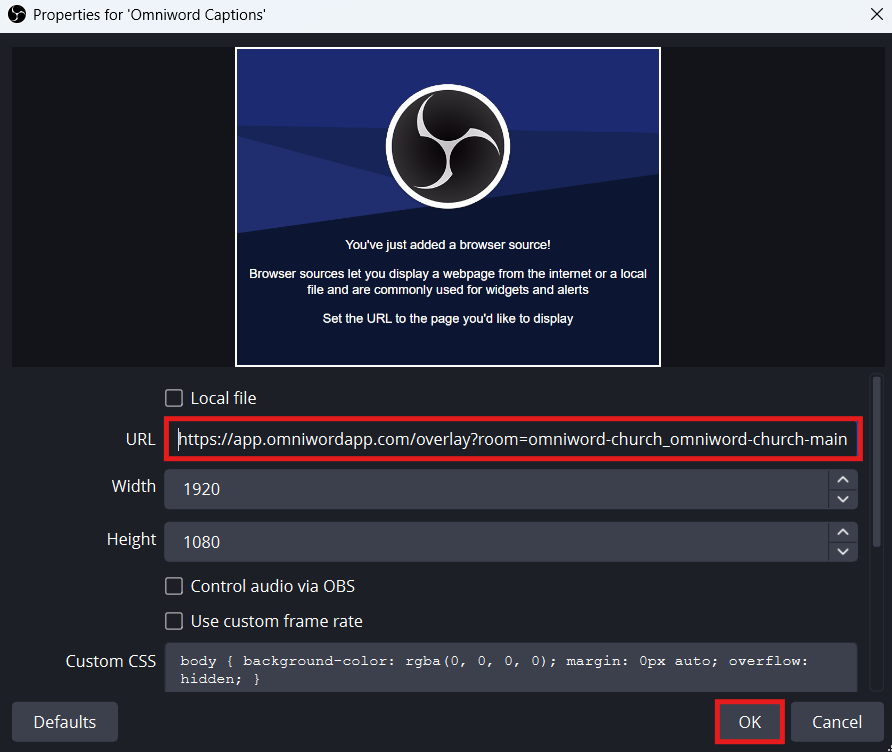
Screenshot: paste the Screens & Broadcast Target URL into URL (keep Width / Height at your program size, e.g. 1920 × 1080).
3. Use full canvas size
Set Width and Height to your full program size (commonly 1920 × 1080). Unlike ProPresenter, you do not draw a small lower-third box — OmniWord places captions at the bottom of the full frame automatically. The rest of the page stays transparent when alpha works.
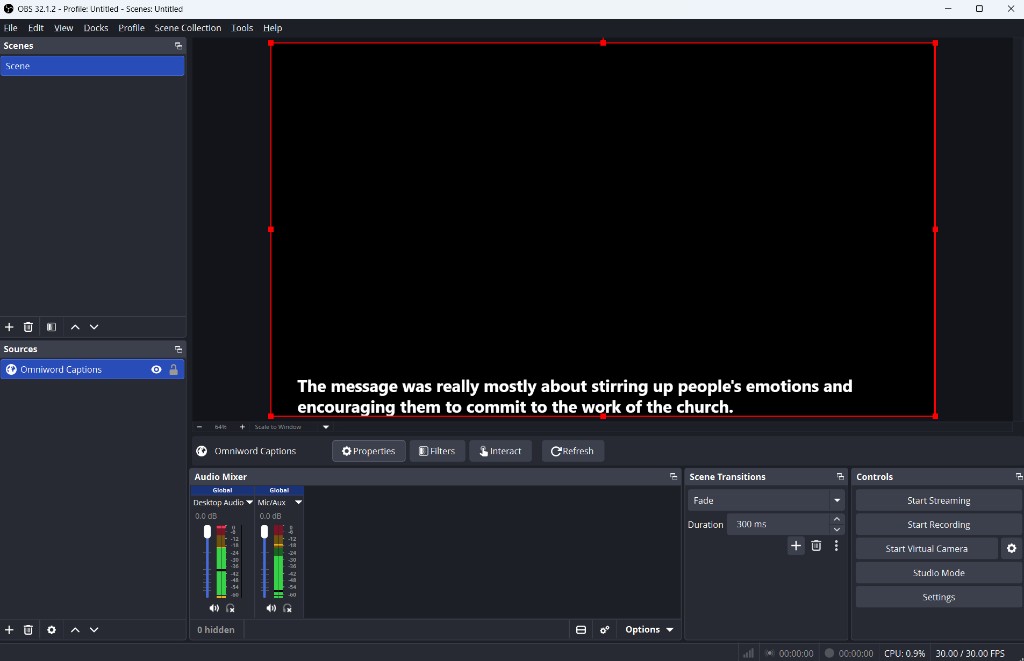
Screenshot: full-frame Browser source — captions sit at the bottom. If the rest of the frame is solid black (as above), go to the next step.
4. Fix a black background (if needed)
Check the preview: captions only, no black box.
You should see white caption text over your camera or slides.
If a solid black rectangle covers the screen instead:
- Add
&bg=greento the end of the caption URL (e.g....&bg=green). - Right-click the Browser source → Filters → add Chroma Key.
- Key out the green so only the text remains.
5. Optional — save CPU when captions are off-air
In the Browser source properties, turn on Shutdown source when not visible. OBS then stops loading the caption page whenever that scene is hidden.
vMix setup
- Add Input → Browser.
- Paste the same HTTPS Target URL from Screens & Broadcast.
- Size the input to your output mix; use chroma/luma key if your pipeline strips alpha (see below).
If the background is black
OmniWord’s caption page is transparent by default. Some GPU / capture paths drop that transparency and show black.
| Fix | When to use |
|---|---|
&bg=green + OBS Chroma Key | Most common — green screen behind text, then key it out |
&bg=black + Color / Luma Key | If your workflow prefers a black key |
See Troubleshooting — OBS transparency for more detail.
Recommended OBS settings
| Setting | Recommended value |
|---|---|
| Base resolution | 1920 × 1080 |
| Output resolution | 1920 × 1080 or 1280 × 720 |
| Frame rate | 30 fps |
| Browser source width / height | Match your program canvas |
Sanctuary screen
The HDMI cable to the projector (or the LED processor) comes from the computer running OBS or vMix, after you turn on that app’s full-screen output.
Arrange displays as Extend, so the operator screen and the sanctuary screen are separate. A mirrored desktop would put the operator’s menus on the sanctuary screen.
Leave Start Streaming and Start Recording off when the sanctuary screen is the only destination.
Lyrics that already live in ProPresenter use that audience look instead. See ProPresenter.
PowerPoint and Keynote
PowerPoint and Keynote play a normal slideshow as a full-screen picture. That picture fills the sanctuary display, so a caption window cannot sit on top of it. Capture the slideshow into OBS or vMix, put the OmniWord Browser source above it, and send the mix to the projector.
A window on the operator screen
The slideshow opens as an ordinary window on the laptop. The rest of the desktop, including OBS or vMix, stays visible. The switcher captures that window. The sanctuary image is the switcher’s output, so the audience sees the slide and the captions, without the window frame.
PowerPoint (Windows or Mac):
- Slide Show → Set Up Slide Show.
- Under Show type, select Browsed by an individual (window).
- Start with From Beginning.
Keynote (Mac): menu bar Play → Play Slideshow in Window.
Click or use the presentation clicker inside that window. Click the slideshow window once so it keeps keyboard focus. Arrow keys and most clickers go to whichever window is in front.
In OBS, add Window Capture and choose the slideshow window. Hold Alt (Mac: Option) and drag the source edges to crop the title bar. In vMix, Add Input → Desktop Capture and choose that window.
A full-screen show on a spare display
Use this when you want presenter notes and a normal full-screen slideshow. PowerPoint or Keynote’s audience display is a spare screen, and the real projector still receives only OBS or vMix.
- Mac: add a virtual display (for example with BetterDisplay), or plug in an HDMI dummy adapter that the Mac treats as a monitor. Play Keynote or PowerPoint full screen on that display. OBS Display Capture it. If the capture is black, allow OBS under macOS Screen Recording.
- Windows: use a second video output with an HDMI dummy plug the same way. OBS or vMix Display Capture that monitor.
PowerPoint + OBS
One computer, Windows or Mac.
- Extend the displays. PowerPoint’s slideshow target is the operator window or a spare display, as above.
- In OBS, put Window Capture or Display Capture of the slides under the OmniWord Browser source.
- Right-click the Preview → Fullscreen Projector (Preview) → the sanctuary display.
Keynote + OBS
One Mac. Keynote does not run on Windows.
- Play → Play Slideshow in Window, or play full screen onto a virtual display or HDMI dummy.
- OBS Window Capture or Display Capture, with the OmniWord Browser source above it.
- Fullscreen Projector (Preview) to the sanctuary display.
PowerPoint + vMix
One Windows PC. vMix does not run on Mac. Connect the projector before you open vMix, and set Windows displays to Extend.
- Play PowerPoint in a window, or full screen on a dummy-plug display.
- Add Input → Desktop Capture and choose the slideshow window.
- Add Input → Browser, paste the OmniWord URL, and place that input above the slides in the mix. If the caption background is a black box, follow If the background is black.
- Under Settings → Display, select the sanctuary display. Click Fullscreen. The arrow beside Fullscreen should be Output — the mixed picture. Fullscreen of the PowerPoint input alone leaves the captions off the screen.
vMix can also open the file with Add Input → PowerPoint when PowerPoint is installed on that PC. Slide builds, embedded video, and the presentation clicker stay with the live slideshow capture above.
Keynote + vMix
Two computers. Keynote is Mac-only and vMix is Windows-only.
- On the Mac, play Keynote full screen to an HDMI output or a virtual display.
- Bring that picture into the vMix PC. Either run HDMI from the Mac into a capture card, or send the Mac screen with NDI (NDI Scan Converter) and add an NDI input in vMix.
- On the vMix PC, place the OmniWord Browser input above that capture.
- vMix Fullscreen goes to the sanctuary display, with the arrow beside Fullscreen set to Output. The Mac’s HDMI cable stays on the capture path, not on the projector.
The room shows the stream layout
The picture a stream would send can be the sanctuary screen, whether or not you start the stream.
- Same picture in the room and online. Build one scene: slides or camera, plus the OmniWord Browser source. OBS Fullscreen Projector shows that scene in the room. Start Streaming sends the same scene online when you want a broadcast. In vMix, Fullscreen and Stream both follow the current output.
- Lyrics in the room, a different layout online. In OBS, right-click the in-room scene in the Scenes list → Fullscreen Projector (Scene) so the projector stays on slides and captions. Put the camera layout in the scene you stream. In vMix, a second mix (on editions that include one) can feed the stream while Fullscreen stays on the lyric output.
House audio stays on the sound console. Mute desktop audio in OBS or vMix so the room does not get a second copy of the house sound.
Related
- Caption window — captions on their own display, with no slides on that output
- ProPresenter