On-Site Captions
Route live sermon captions to the sanctuary screen with a caption-only browser window, or with ProPresenter, OBS, or vMix.
OmniWord splits setup into two places:
| Where | What you configure |
|---|---|
| Live | Which language(s) appear on screen (Live Translation / Live Translation 1–2), the lines button (reading screen), and the monitor button (one-line caption strip) |
| My Account → Settings → Screens & Broadcast | Overlay URLs, Open window, caption size, test messages, and ProPresenter Direct (per room) |
The web overlay page shows the latest subtitles at the bottom of the frame. Each Target URL includes room= and lang= so Browser Sources stay tied to the correct service and language.
One-time delivery setup
- Open My Account → Settings → Screens & Broadcast.
- Under Select Room, pick the service (room) you will run on Sunday. Overlay links and ProPresenter Direct settings are per room.
- Confirm languages on Live first (see below). Target 1 / Target 2 show the matching Web Overlay URLs once a language is selected.
- Copy each Target URL, set Size with the steppers, and optionally click Send Test Message while the overlay page is open.
- Choose a delivery path:
- Reading screen or caption strip → browser windows from Live (no extra software) (Caption windows)
- Web Overlay URL → ProPresenter Prop web object (Windows), OBS Browser Source, or vMix Browser Input (Prop workflow · OBS / vMix)
- ProPresenter Direct → push captions into a ProPresenter Message template with
{Lang1}/{Lang2}— required on macOS (ProPresenter Direct)
Pick Live Translation languages before you click Start Service. While recording, language selections are locked. Caption Size and Screens & Broadcast delivery settings can still be adjusted from Account.
Live chooses which languages to translate for the screen and can open a reading screen or a caption strip. Overlay URLs, font size, Send Test, and ProPresenter Direct are under My Account → Settings → Screens & Broadcast.
Choose languages on Live
On the Live screen, in the Languages section:
- Set Speaker language (what the preacher speaks).
- Under Live Translation 1 / Live Translation 2, choose the screen caption language(s).
- Click the lines button for a reading screen (recent sentences stay; F11 for full screen), or the monitor button for a one-line caption strip. Leave a slot on None if you do not need that target.
Then return to Screens & Broadcast if you still need Target URLs or ProPresenter Direct.
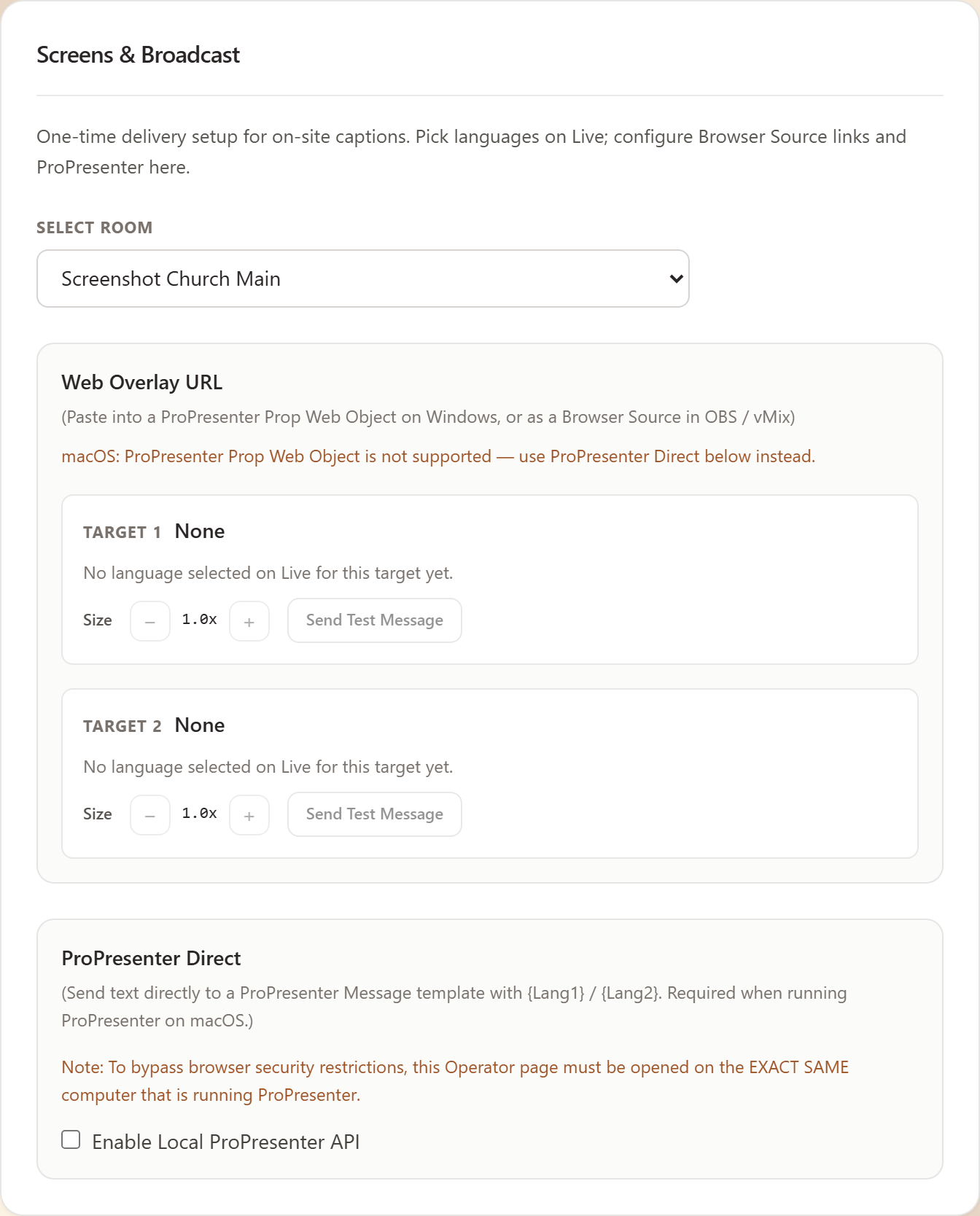
Screenshot: My Account → Settings → Screens & Broadcast — select room, copy Target URLs, set Size, Send Test, or enable ProPresenter Direct.
Choose your platform
Pick one primary path for Sunday (these are alternatives, not a required sequence):
- Reading screen and caption strip — browser windows from Live; no ProPresenter / OBS required
- ProPresenter — Prop Web Object (Windows) or ProPresenter Direct (Message API; required on macOS)
- OBS / vMix — Browser Source / Browser Input. Includes PowerPoint or Keynote on the sanctuary screen, with or without an internet stream